
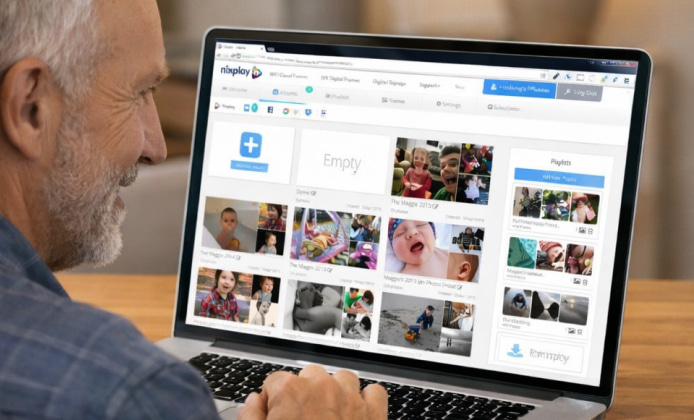
Nixplay is best known for making it easy to share photos and short videos to a Wi-Fi digital frame, but a computer can be the most comfortable place to organize everything. For many families, Nixplay on computer feels like the easiest way to curate albums during a busy week.
In this guide, you’ll learn how to use Nixplay from a Windows or Mac computer, how to upload and organize content efficiently, and how to troubleshoot the most common issues without turning the setup process into a project.
Why Use a Computer Instead of Only a Phone
- Faster organizing: Renaming, sorting, and bulk selecting files is usually quicker with a mouse and keyboard.
- Better visibility: A large display helps you review images for quality, orientation, and duplicates.
- Simple file access: Photos from cameras, external drives, or shared folders are often already on your computer.
A helpful mindset: treat your computer as the “curation desk” and your frame as the “living room gallery.”
Three Ways to Access Nixplay from a Computer
When you want a bigger workspace than a phone offers, Nixplay on desktop can simplify bulk uploads in Chrome or Edge.
- Web dashboard in a browser: Log in to your Nixplay account using a modern browser and manage albums, frames, and sharing.
- Mobile-first management: Use the phone app for quick sharing, then fine-tune albums and ordering later on a computer.
- Android emulator on Windows or Mac: Run the mobile app inside an emulator if you strongly prefer an app-like interface.
| Option | Best for | Trade-offs |
|---|---|---|
| Browser dashboard | Fast uploads, easy organization, no extra software | Depends on browser and internet connection quality |
| Phone app + computer curation | Quick sharing on the go, later sorting at home | Two-step workflow if you bounce between devices |
| Android emulator | App-like experience on a computer | More setup, uses more system resources |
Getting Started: Account, Frame, and First Sync
Because the service also runs in a browser, the Nixplay app on computer experience can start without any extra software in most cases.
- Create or sign in to your Nixplay account using the email you want to manage sharing from.
- Add your frame by following the on-screen pairing steps and confirming it’s connected to Wi-Fi.
- Name the frame clearly (for example, “Grandma Living Room” or “Kitchen Frame”) so assigning albums stays simple later.
Uploading Photos and Videos from Your Computer
Some users search for a dedicated installer, but Nixplay download for PC is usually best interpreted as choosing the web dashboard or an emulator option.
Tips for smoother uploads
- Keep uploads in batches (for example, one event at a time) so it’s easier to spot missing items.
- Use descriptive album names like “2026 Winter Holidays” instead of “New Album 4.”
- Rotate and crop photos before uploading when possible, especially if they came from a camera.
Recommended file hygiene before you upload
- Remove near-duplicates (burst photos are common).
- Check orientation and basic edits (brightness, crop, straightening).
- Rename key images when it helps (for example, “Family_Portrait_1”).
How to Organize: Albums, Playlists, and Frame Assignments
Once everything is set, the Nixplay app for PC workflow is mainly about organizing albums and assigning them to frames quickly.
A simple structure that works well for most households:
- Albums by event: birthdays, trips, holidays, milestones.
- Albums by person: kids, grandparents, pets.
- Seasonal rotation: keep a “Now Showing” album you refresh monthly.
After you build a few albums, assign them to the frame(s) you want, then adjust the display order so favorites appear earlier. If you share frames with multiple family members, consider one shared album everyone can add to and one “curated” album you control.
Installing an App-Like Experience on Windows
If you prefer a native-style interface, you can install Nixplay on PC through an Android emulator and sign in with your Google account.
That approach is optional, but it can help if you like a phone-style layout or want notifications in a desktop environment. The main downside is that emulators can be heavy on older laptops, so the browser dashboard is often the simplest path.
Where to Get Content from: Cloud Sources and Local Files
Before you try to download Nixplay for computer, check whether your needs are met by the web app and a modern browser.
- Local folders: Great for camera photos, scanned images, or curated collections.
- Cloud libraries: Helpful if your photos live in online services and you want fewer manual transfers.
- Family contributions: Shared albums let relatives add memories without handing you files directly.
Sharing and Privacy Basics
Think about sharing as two layers: who can add content, and who can view content. If you invite relatives to contribute, set expectations about what belongs in the shared album and keep a separate private album for personal moments.
- Use unique album names to avoid accidentally assigning the wrong set of photos to the wrong frame.
- Review invitations occasionally and remove access if a link was shared too broadly.
- If your frame supports email-to-frame features, treat that address like a private inbox and share it only with trusted people.
Troubleshooting Common Problems
- Confirm the frame is connected to Wi-Fi and shows as online in your account.
- Make sure the album is assigned to the correct frame, not just created.
- Restart the frame and your router if syncing looks stuck.
Uploads Feel Slow
- Try smaller batches and avoid uploading while a large cloud backup is running.
- Use a wired connection if you can, especially on desktops.
- Close unused browser tabs to reduce memory pressure.
You Can’t Find the “Computer App” You Expected
Many people assume there is a dedicated Windows installer, but Nixplay is commonly managed through a browser plus a mobile companion app. For a more app-like approach on Windows, an emulator can fill the gap when needed.
Quick FAQ
- Can I manage everything from a computer? Yes, most day-to-day tasks uploads, album organization, and frame assignments can be handled comfortably from a browser on your computer.
- Do I need special hardware? No, a modern browser, a stable internet connection, and access to your photo files are usually enough for smooth management.
- Is there a safe way to use the mobile app on Windows? Using a well-known Android emulator is the typical method if you want an app-like interface, but it’s optional for most users.
- Choosing the Best Setup for Your Routine
Fast Sorting, Shared Albums, and Smooth Uploads
If your goal is fast organizing and reliable uploads, start with the web dashboard and treat it as your main control center. If you still want an app experience, the emulator route can work well on a capable machine, and you can keep your workflow consistent across devices. When you’re ready to expand your setup, invite family members to contribute to a shared album, then curate the final “highlight reel” so the frame always feels fresh. To avoid confusion while searching, remember that download Nixplay for computer often refers to using the browser dashboard or running the mobile app through an emulator on Windows.
For clarity, anyone looking for Nixplay download for PC should focus on the official web experience first, then choose an emulator only if they truly need a mobile-style interface. As you build your system, the phrase Nixplay app on computer typically means managing albums and frames through a browser with drag-and-drop convenience. For day-to-day curation, Nixplay on desktop usually shines when you’re sorting large folders from a camera or external drive.


 Nixplay for Computer: A Practical Guide to Managing Your Digital Photo Frame
 Nixplay Install Guide: Set Up the App and Your Digital Frame Smoothly
 How the Nixplay App Helps You Share Photos and Manage Digital Frames
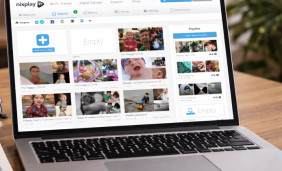 Nixplay on a Laptop: Setup, Sync, and Share Your Best Moments
 6 Tips to Maximize Your Nixplay App Experience
 Best Apps Similar to Nixplay